01
Bring your moment.
Upload a stream highlight or video file you own or have permission to edit — free, approved beta account required.
that-one-moment.mp4Ready for your next edit
 CLIPFASTOpen editor
 FREE ONLINE TWITCH CLIP EDITOR
Turn your Twitch clips and stream highlights into vertical 9:16 videos for TikTok, YouTube Shorts and Instagram Reels. Trim the moment. Frame your facecam. Add captions. Export in your browser.
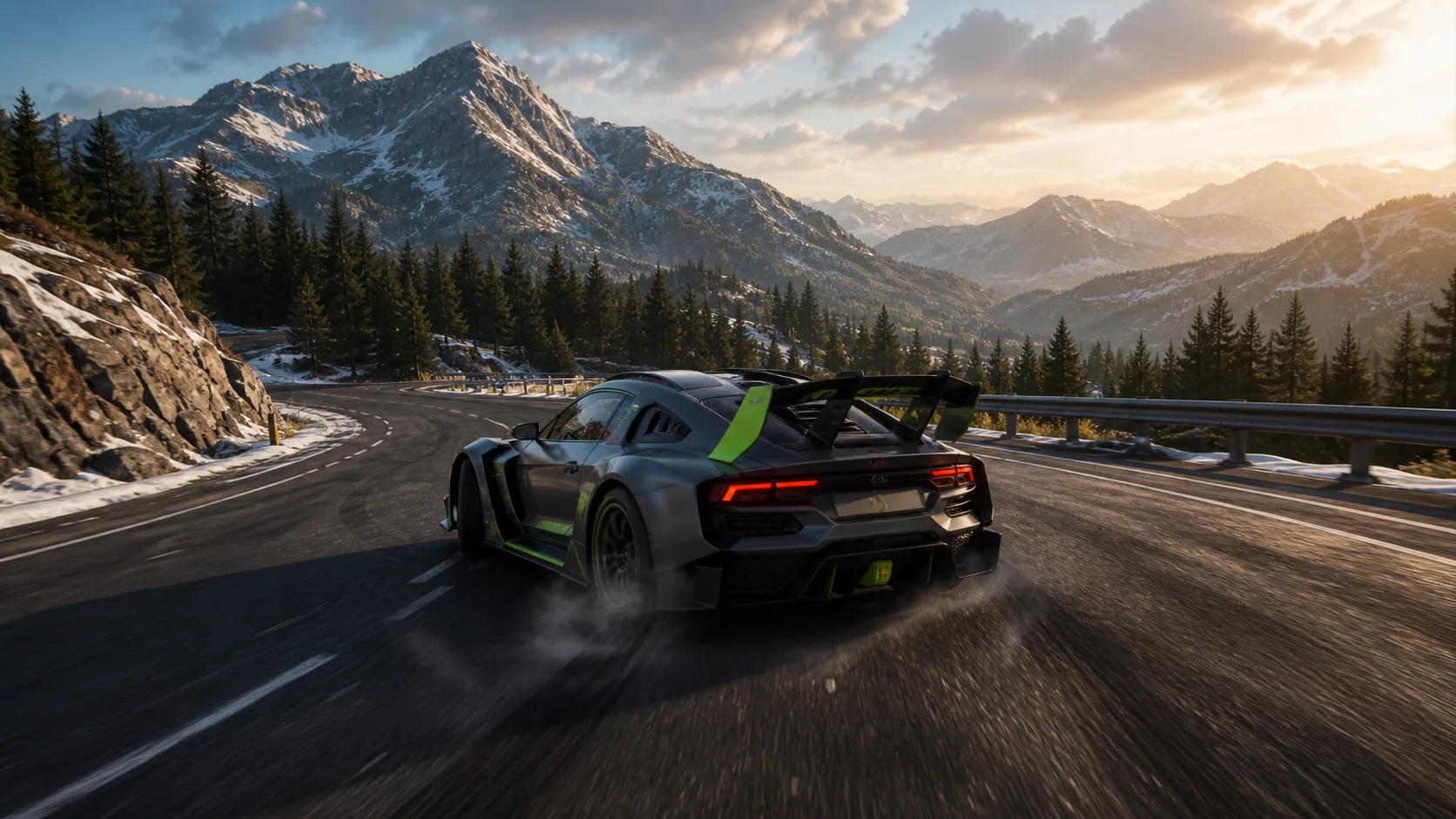
Split screen preview · Adjust the crop and facecam position in the editor.
Paste a public Twitch VOD, review suggested cuts, then finish them in this editor. AI processing runs on a server.
Try AI clipping01 / HOW IT WORKS
Your next short starts with a good moment.
Here’s how you turn it into a TikTok, Short or Reel.
Upload a stream highlight or video file you own or have permission to edit — free, approved beta account required.
Pick split screen, round or small facecam, or fullscreen. Crop to 9:16, frame your reaction, add captions and audio.
Download your vertical video as MP4 (WebM fallback) and upload it to TikTok, Shorts or Reels yourself.
02 / EDITOR FEATURES
From the first cut to the final caption,
your vertical edit stays in your control.
Cut the setup, split your footage on the timeline, and turn a long stream highlight into a tight vertical clip that gets to the moment.
Add captions to your clips, edit every word, and style them with colors, sizing and animation so viewers keep watching with the sound off.
Layer music and sound effects under your gameplay or reaction, and place each audio track exactly where the moment lands.
Punch in with zoom, shake the screen on the big play, or flash on the clutch — timed effects built for Shorts, TikToks and Reels.
Split screen, round facecam, small facecam, or fullscreen — all reframed for 9:16.
Try the layouts03 / WHO IT’S FOR
If your best moments live in VODs and highlights,
ClipFast turns them into feed-ready vertical video.
Turn tonight’s VOD moments and stream highlights into vertical videos your community can share the next morning.
Reframe 16:9 gameplay into 9:16, keep your facecam reaction in frame, and post the same clip to TikTok, Shorts and Reels.
Cut drafts fast in the browser with split, round facecam, small facecam and fullscreen layouts — no install, with beta access.
04 / EXPORT & PRIVACY
Free to use, beta access, no install.
Cut, export and upload wherever your audience is.
The free ClipFast Chrome extension adds an Alt+C shortcut to capture the Twitch moment you’re watching. You still edit an authorized source video in the editor.
Open the free editorEditing and export run locally in your browser. Optional automatic transcription sends audio to the transcription service when you use it.
05 / TWITCH TO TIKTOK FAQ
How ClipFast turns stream highlights into vertical videos —
and what happens to your files.
ClipFast is a free online video editor that turns Twitch clips and stream highlights into vertical 9:16 videos for TikTok, YouTube Shorts and Instagram Reels. Trim footage, arrange gameplay and facecam, add captions and audio, then download your edit — all in your browser, approved beta account required.
Upload a video file you own or have permission to edit, pick a vertical layout such as split screen or facecam overlay, trim to the best seconds, add captions if you like, then export. Download the MP4 and upload it to TikTok, Shorts or Reels yourself.
Yes. ClipFast is free to use and requires beta approval. Open the editor in your browser, cut your clip and export it.
Manual editing and export run locally in your browser. Optional automatic transcription sends audio to the transcription service. The separate AI clipping workflow processes public Twitch VOD audio on a server and stores transcripts and selected preview clips.
The AI clipping MVP analyzes speech in a public, finished Twitch recording and suggests short moments to review. Prepare a preview, then open it with captions in the existing editor. Processing continues after you close the page while the recording processor remains running.
Yes. Choose split screen, a round facecam, a small facecam overlay, or fullscreen. Then adjust the crop and facecam position so the action and your reaction both stay in frame.
Yes. Add and style captions, adjust their timing, and place uploaded music or sound effects on the timeline. Automatic caption generation requires the transcription service to be configured.
Export runs in your browser. MP4 is used when your browser supports it; otherwise the editor downloads WebM. Available formats depend on your browser.
No. The editor runs entirely in your browser. The optional free ClipFast Chrome extension adds a shortcut (Alt+C) for capturing the Twitch moment you are watching; you still edit an authorized source video in the editor.
No. ClipFast prepares the vertical video — you download the file and upload it to each platform yourself. That keeps your accounts and your footage under your control.
Only video you own or have permission to edit, such as your own streams and highlights. Respect the platform rules and the rights of other creators before uploading anywhere.
DON’T LEAVE IT IN THE VOD
Free vertical video editor. Your footage. Right in your browser.